
Step 1
Create your Account
Start by creating your Hello Guest Screen account following the instructions. Make sure you verify your email, put your login credentials somewhere safe, and then you're all set to go.
Step 2
Prepare and create your beautiful default screen…
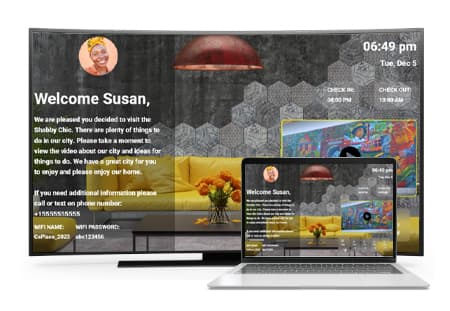
Log in to your account and follow the step-by-step video instructions—it’s intuitive, even without the video. The first screen you set up will become your default display. Please ensure you have your background image, company logo or profile picture, and the YouTube video link ready.
Step 3
Time to Link to Your Smart TV...
After review, head to the desired location to showcase your creation (we suggest your main living area and/or master bedroom). You only need to visit the physical location once (or have someone provide you with the code from the TV via the HGS App). All other information will be uploaded in real-time remotely.
Scheduling and Personalizing for Your Guest (Optional)…
Step 4
If you would like to schedule your guest now In the schedule section, you can create and customize screens with personalized content, such as backgrounds, guest names, and video links, tailored to specific guests or events. These screens are calendar-driven based on reservation details. Want to explore these features? Schedule a QUICK DEMO, and we'll guide you through it.
Roku Setup
How do I set my Roku to power on to my App?
Set Roku TV to automatically use Firestick. On your Roku TV: Home → Settings → System → Power → Power On → choose the HDMI input where your Firestick is connected. Now the TV will default to the Firestick when powered on.

Notable Mentions
Additional Notes
Download the HGS App on your Smart TV (Amazon or Google Playstore). Ensure your TV supports these stores; otherwise, use an external device. You may need to type the full name or ask Alexa for “Hello Guest Screen App.” The first screen you create is your default and displays when no guests are scheduled. Do not unlink a screen—updates happen remotely in real-time; if unlinked, you’ll need to return to the property. You can schedule personalized guest messages anytime. For support, visit the Contact Page or call 1-888-973-6214 (option 3) Monday thru Friday 7am to 4pm CST.